The Editor
The editor is where most of your time in Doable will be spent. It has three panels:
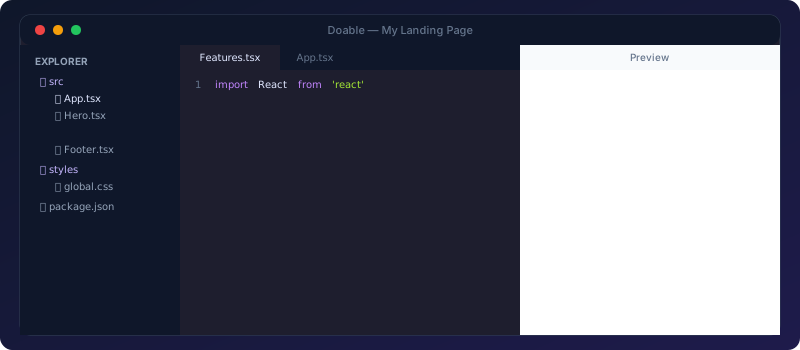
┌──────────────┬─────────────────────────────┬───────────────┐
│              │                             │               │
│  File tree   │      Live preview /         │  Chat with AI │
│              │      Monaco code editor     │               │
│              │                             │               │
└──────────────┴─────────────────────────────┴───────────────┘
You can drag the dividers, collapse panels, or detach the preview into a separate window.
File tree (left)
- Lists every file in the project.
- Click a file to open it in the code editor.
- Right-click for rename / duplicate / delete.
- Drag-drop to move files / create folders.
- Search box at the top; searches file names and contents (server-side regex).
Center panel: Preview ↔ Code
Toggle between the live preview and the Monaco code editor with the buttons in the toolbar.
Live preview
- Renders the project's Vite dev server inside an iframe.
- Updates instantly when files change (Vite HMR).
- Build errors show as a banner.
- Three viewport sizes: mobile, tablet, desktop. Resize handles on the sides for custom widths.
- Visual edit mode: click the cursor icon, then click any element to edit it inline. See Visual Edit.
Code editor (Monaco)
- Same engine that powers VS Code.
- Syntax highlighting, IntelliSense, multi-cursor, find-and-replace, command palette.
- Real-time collaborative cursors from other users (different colors).
- AI changes appear as if a teammate were typing them.
Chat (right)
The conversational interface to the AI agent. Each project has at least one chat.
- Message box at the bottom: type and press Enter, or Shift-Enter for a newline.
- Mode dropdown above the box: Build / Plan / Chat / your custom modes.
- Model picker: pick a specific model for this message (defaults to workspace default).
- Attachments: paste an image (UI mockup, screenshot of a bug); the agent uses it as context.
Streaming events
As the agent works you see:
- The assistant's text streamed in real time.
- Tool calls as collapsible cards (file edits, shell commands, fetches). Click to inspect args/results.
- Permission prompts when the agent asks to do something not explicitly allowed (e.g. install a new package). Click Allow / Deny.
- Token & cost rollup at the end of each turn (if billing is enabled).
Chat history
- Click the chat dropdown at the top of the panel to switch between chats or create new ones.
- Each chat has its own mode and history. Useful for parallel threads of work.
Toolbar (top)
| Button | Effect |
|---|---|
| Run | Restart the project's Vite dev server |
| Save | Force-save (rarely needed; saves are automatic) |
| History | Open the version history sidebar |
| Share | Invite people, get the share link |
| Publish | Build and deploy the project |
| Settings | Project-scoped settings (env vars, custom domain, visibility) |
Keyboard shortcuts
| Shortcut | Action |
|---|---|
Cmd/Ctrl + S |
Save the active file (also auto-saved on blur) |
Cmd/Ctrl + P |
Quick file open |
Cmd/Ctrl + K |
AI inline command (Monaco-only; see below) |
Cmd/Ctrl + / |
Toggle line comment |
Cmd/Ctrl + Enter (in chat) |
Send message |
Cmd/Ctrl + L |
Focus the chat box |
Cmd/Ctrl + B |
Toggle the file tree |
AI inline edit (Cmd-K)
Inside the code editor, select some code and press Cmd/Ctrl + K. A floating prompt appears; describe the change ("convert this to async/await"). The agent rewrites just that selection without touching the rest of the file. Cheap on tokens, useful for surgical changes.
Build errors & runtime errors
The preview iframe injects a tiny error overlay:
- Build errors (TypeScript, Vite) show inline with file/line/column. Click "Ask AI to fix" to send the error to the chat as the next user message.
- Runtime errors (browser console) similarly include a "Send to AI" button.
The mechanism: services/api/src/visual-edit-bridge-inline.ts injects the bridge script; services/api/src/ai/preview-errors.ts on the API side relays errors back into the chat context.